
1
Consent
2
Authorize
3
Complete
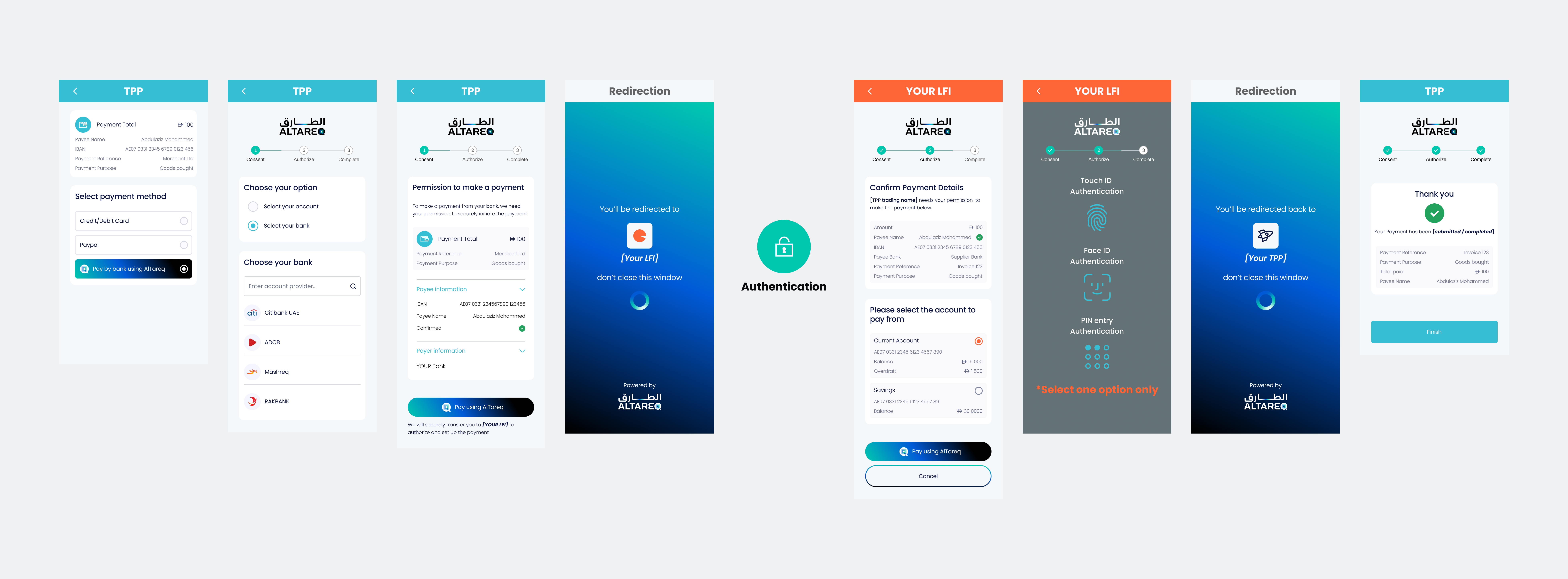
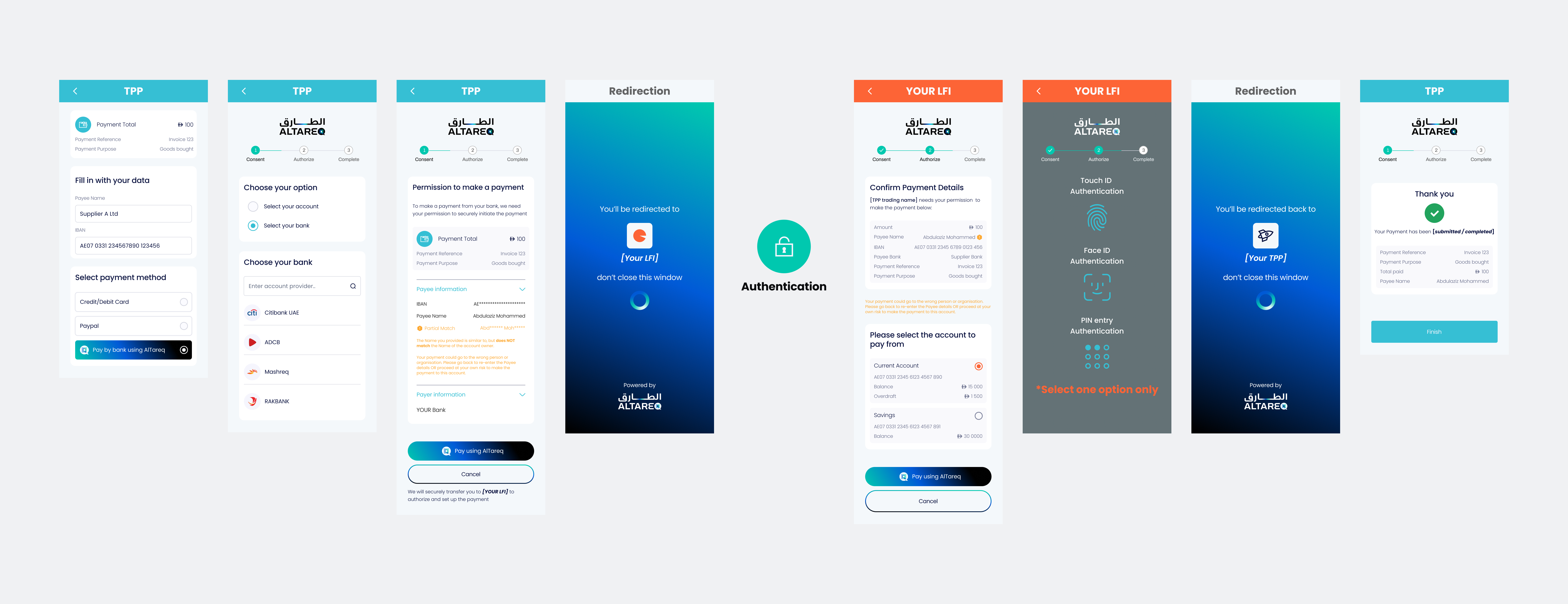
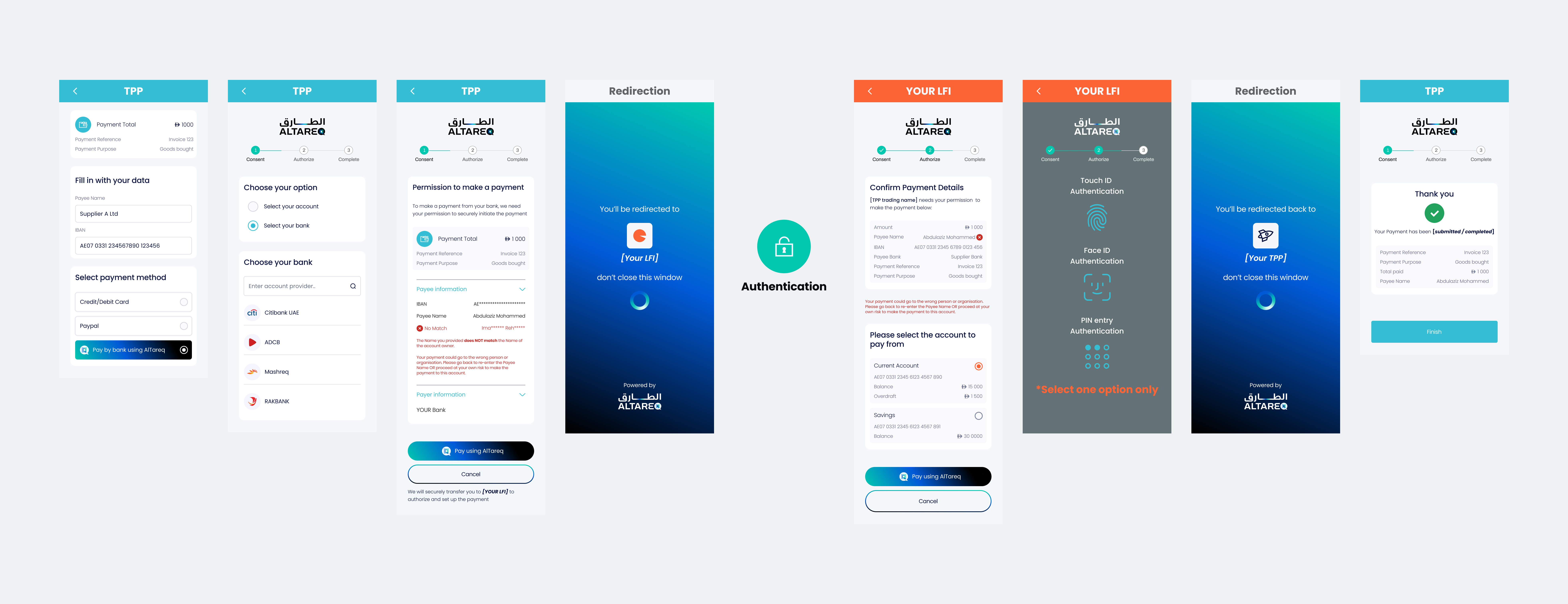
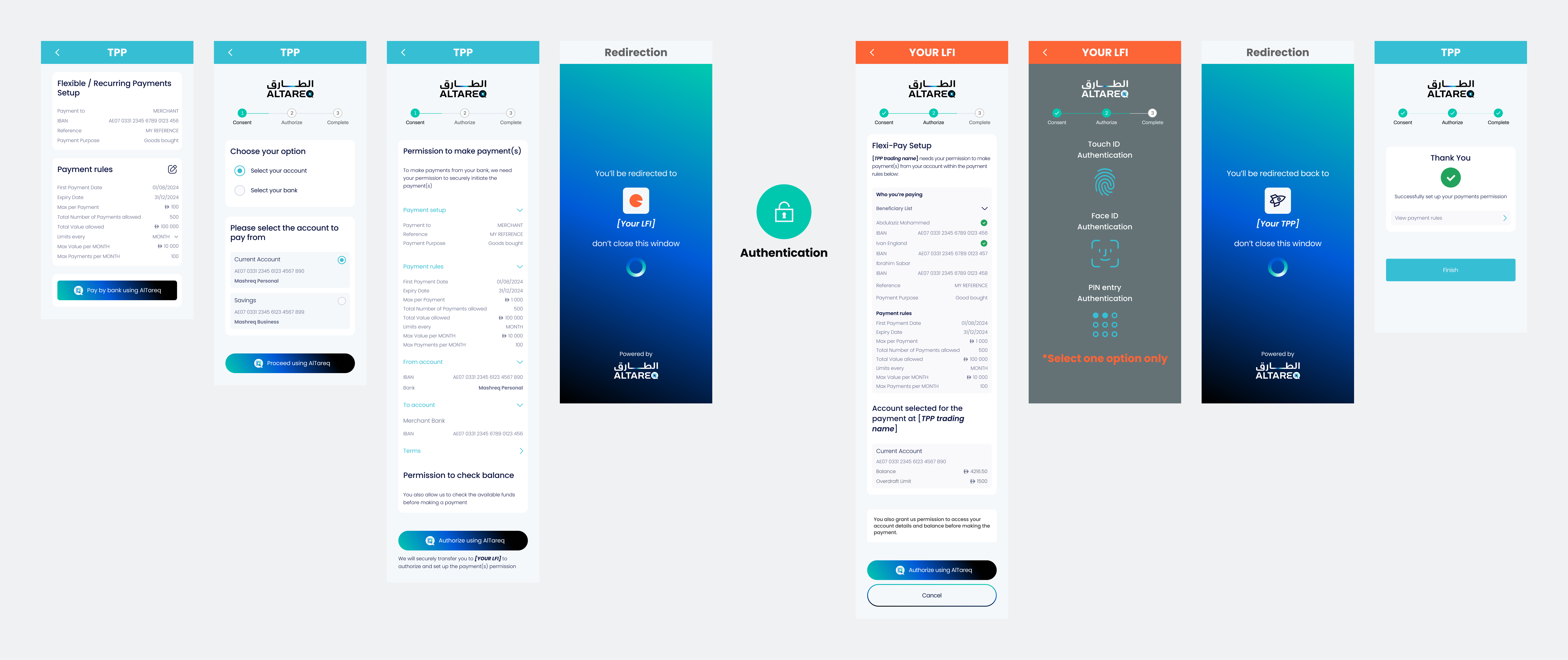
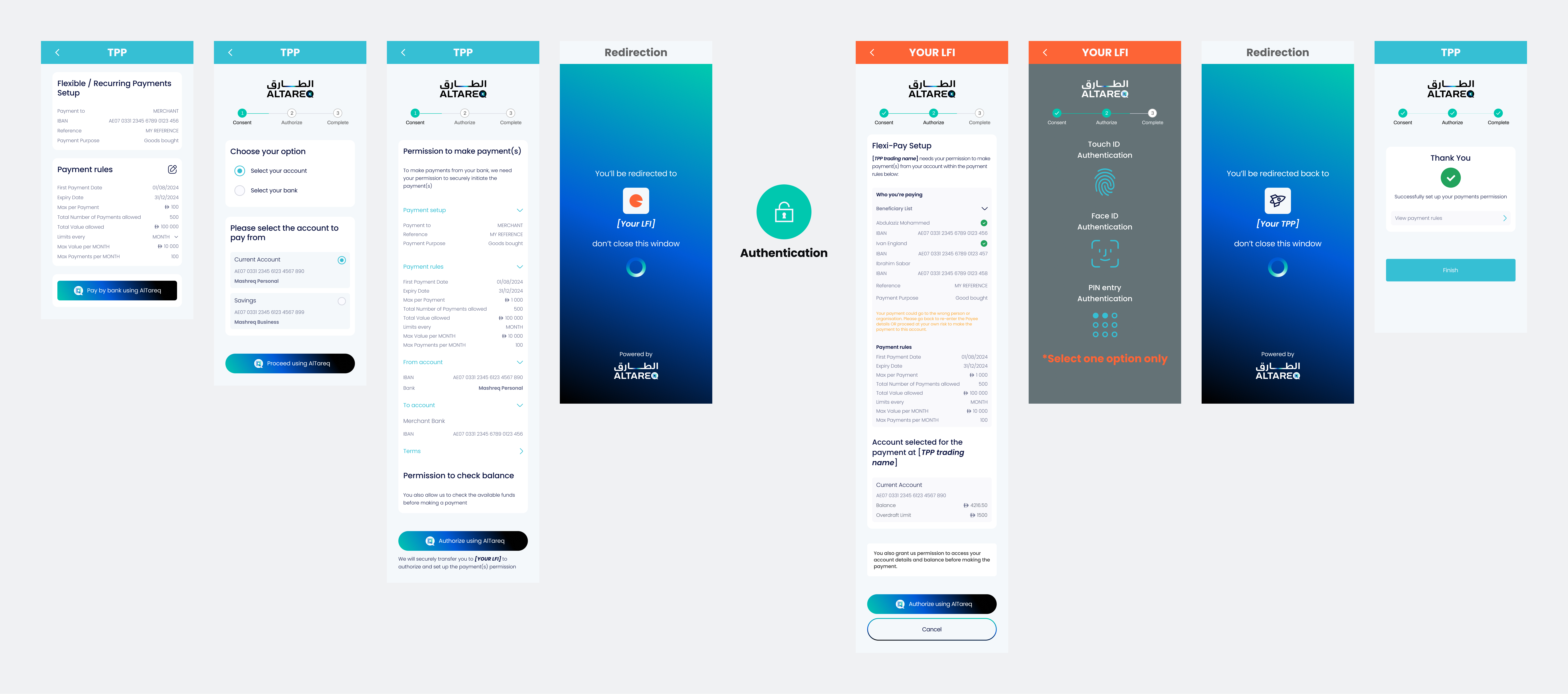
You must display the Confirmation of Payee result faithfully aligned with the demo and examples below. You may not suppress, reorder, or alter the result as this could mislead the customer about whether the payee name matched. The customer must always be able to make an informed decision about whether to proceed with the payment based on the result shown.
Your CoP screen must be submitted as part of CX certification prior to production.
Edit the message.Data fields returned by the LFI and see to change the signed JWS is embedded inside the domestic_payment_pii creditor block and watch the Consent and Authorisation page previews update live.
{
  "Initiation": {
    "Creditor": [
      {
        "Creditor": { "Name": "Ibrahim Al Sabah" },
        "CreditorAccount": {
          "SchemeName": "IBAN",
          "Identification": "AE070331234567890123456",
          "Name": { "en": "Ibrahim Al Sabah" }
        },
        "ConfirmationOfPayeeResponse": "…"
      }
    ]
  }
}